 TickRiver
A few simple steps
Getting started
Set up your workspace, track your work, and turn your hours into a report.
1. Create a client and a project
- Download TickRiver, extract the ZIP, and run the MSI installer. Open TickRiver from the desktop or Start menu.
- Open Clients and choose + Client. Enter a name, currency, and default hourly rate.
- Open Projects and choose + Project. Select the client and enter a project name.
A project can use the client's rate or its own override. You can also track nonbillable work. Archive a client or project when you are finished with it to preserve its history.
2. Start tracking
Open Time Tracker, select your project, enter an optional description, and press Start. Press Stop when you finish. Choose Continue on an existing entry to start a new session for that work.
Forgot the timer? Choose + Add time to record completed work. Entries cannot overlap. For work that runs past midnight, set the end date to the following day.
Closing the application
With a timer running, closing TickRiver lets you stop and save it, keep it counting while the app is closed, or cancel closing. A timer that keeps counting is recovered from its saved start time when you reopen TickRiver. Only completed entries contribute to report totals.
3. Review and export your hours
Open Reports. Choose a period or enter a custom start and end date, then filter by client, project, or unbilled work. Click a day in the chart to see that day's entries. Choose Apply to return to the whole period.
- Export Excel creates detailed entries, a daily summary, and editable Excel charts. Durations and decimal hours are numeric.
- Export PNG saves a chart suitable for sharing or including in a report.
- Copy data copies the displayed detailed entries as an editable table for Word or Excel. Use its arrow to select the columns.
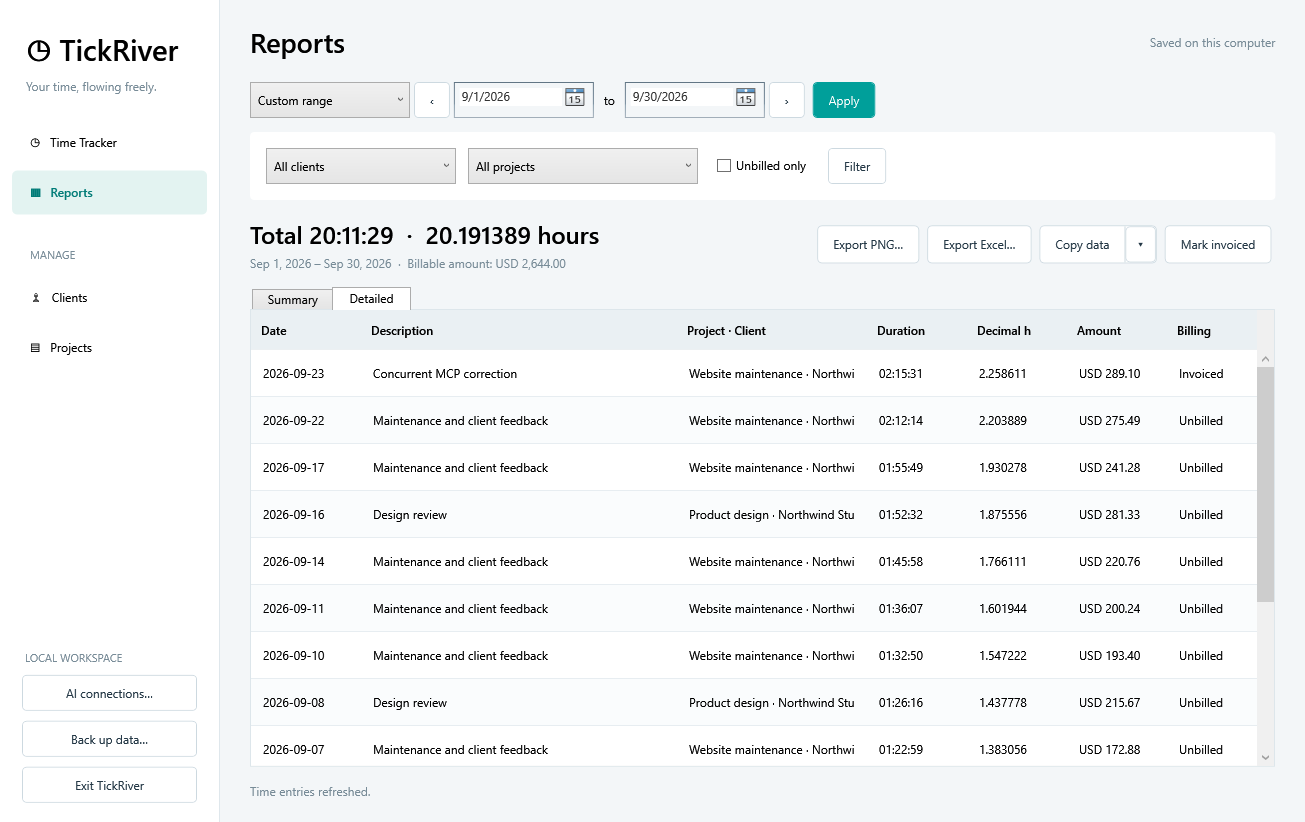
Weeks start on Monday. Reports use your computer's local time zone, split overnight work across the correct days, and keep different currencies separate.
Rates and invoiced work
Each entry records its applied hourly rate and currency. Changing a client or project rate does not recalculate past entries. Continuing an entry starts a new session at the current project rate.
Exporting or copying a report does not mark anything invoiced. Use Mark invoiced explicitly. To remove the flag, edit the entry. TickRiver does not generate invoices or calculate taxes.
Backups and restoring data
Choose Back up data in TickRiver to create a consistent SQLite backup, including while the app is running. Save the backup somewhere separate from the application installation.
Your live database is stored at %LOCALAPPDATA%\TickRiver\tickriver.sqlite. Application updates and uninstall leave this data in place.
To restore a backup
- Exit TickRiver and quit AI clients that are using its MCP server.
- Keep a copy of the current
%LOCALAPPDATA%\TickRiverfolder. - Remove the old
tickriver.sqlitefile and itstickriver.sqlite-walandtickriver.sqlite-shmcompanions, if present. - Copy the backup into that folder as
tickriver.sqlite, then reopen TickRiver.
Connect an AI client
TickRiver can share this workspace with supported AI clients so you can ask about hours or control a timer in a conversation. See AI integration for setup and examples.