Fast drive scans
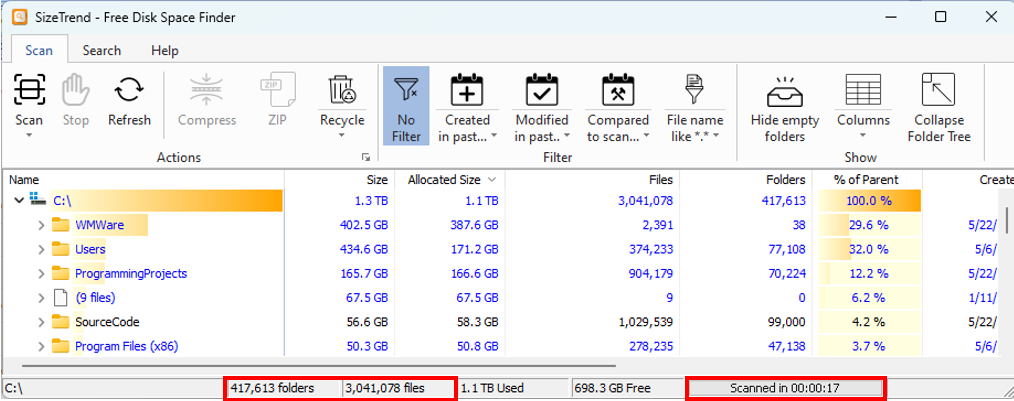
Direct filesystem metadata access keeps NTFS, FAT32, and exFAT scans fast, even on large drives with many files.
Native disk space analysis for Windows
Find what is filling Windows PCs and servers—and keep watching it over time.
SizeTrend finds the biggest applications and games, old files and downloads, Windows and browser caches, Teams data, Git repositories, SQL Server storage, stale print jobs, and other hard-to-explain disk usage.
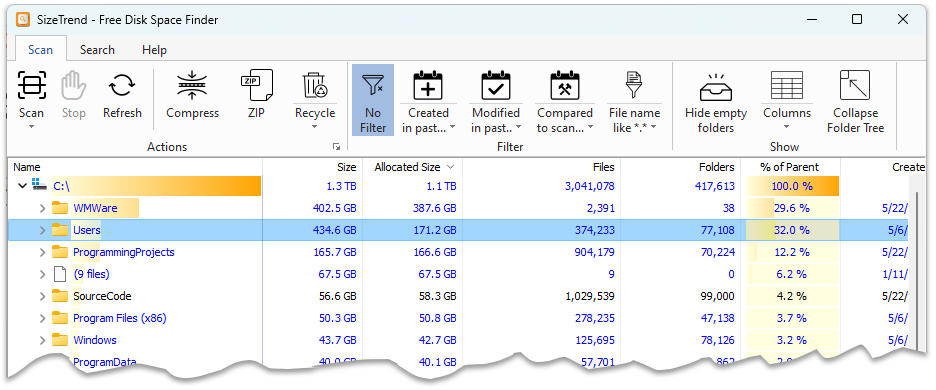
SizeTrend is built for the cases where free space disappears and the usual file browser view does not explain why. Its Overview panel recognizes common storage consumers such as large installed applications and games, old Downloads, the Windows component store, browser caches, Teams and Outlook data, virtual machines, Git repositories, SQL Server data and log files, and IIS logs.
Save a scan, compare it later, and see only the files and folders that changed. SizeTrend Professional can also export HTML Overview reports and Excel or CSV scan data, scan network folders, and run recurring scans with automatic reports through Windows Task Scheduler.
Search by file name, text, or binary content; list files by size, date, or type; find duplicate files; and compress files or folders in place when you know what can be safely reduced.
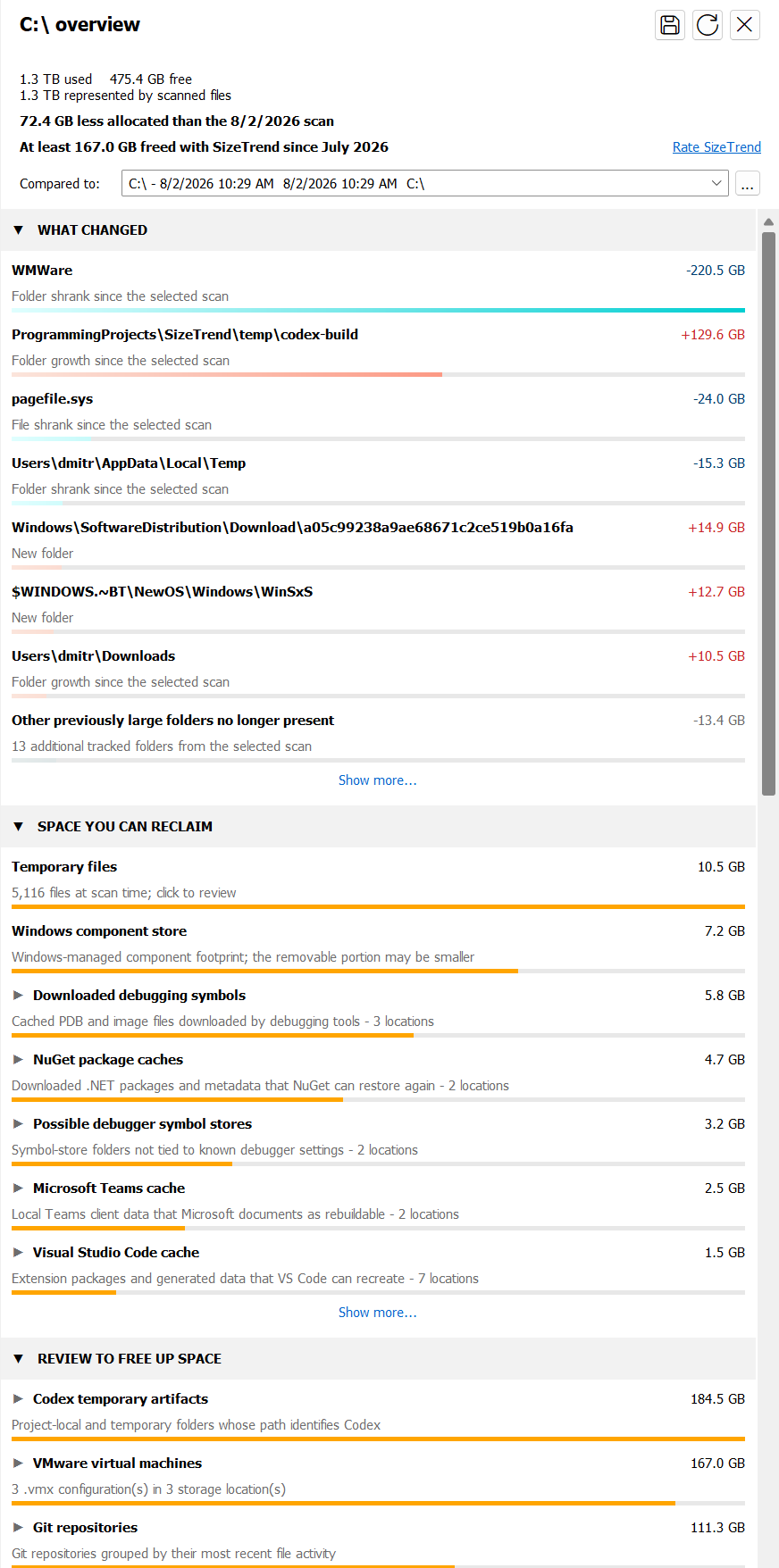
Direct filesystem metadata access keeps NTFS, FAT32, and exFAT scans fast, even on large drives with many files.
See large applications and games, old downloads, Windows and browser caches, Teams data, server storage, developer artifacts, and system-managed files in context before removing anything.
Save and compare snapshots, export an HTML report or Excel/CSV data for somebody else to review, or use Professional scheduled scans and reports to build a history without waiting for a drive to become almost full.
Overview
You should not have to recognize or hunt through obscure Windows and application folders. After a scan, the Overview panel brings together reclaimable space, storage worth reviewing, large installed applications, recent growth, and the folders and files having the greatest impact. Each recommendation explains what it found and uses the appropriate Windows or application cleanup tool when direct deletion would not be safe.
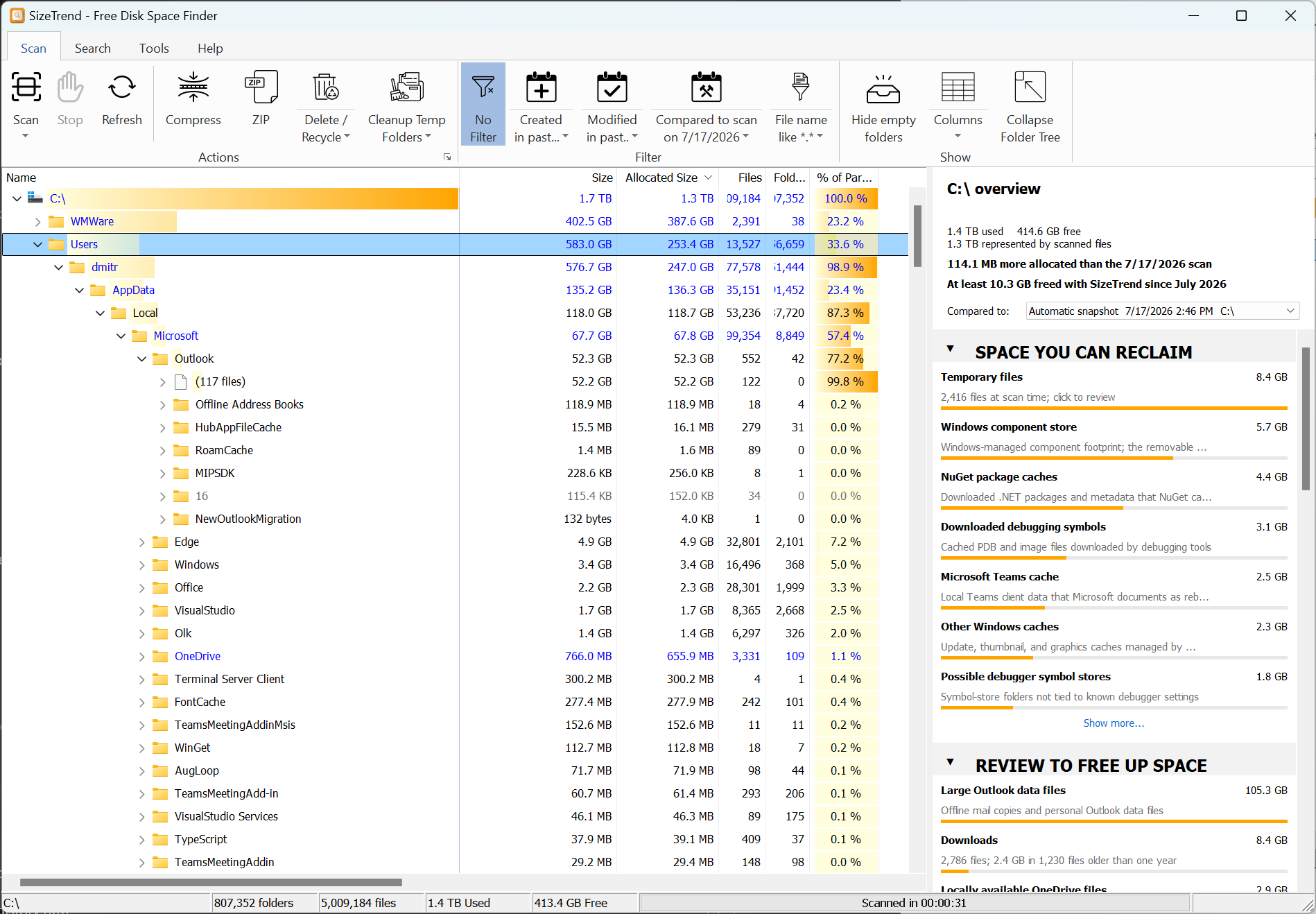
Scan
SizeTrend reads NTFS, FAT32, and exFAT filesystem metadata directly, so a scan can complete quickly without asking Windows to enumerate every folder one at a time.
Search
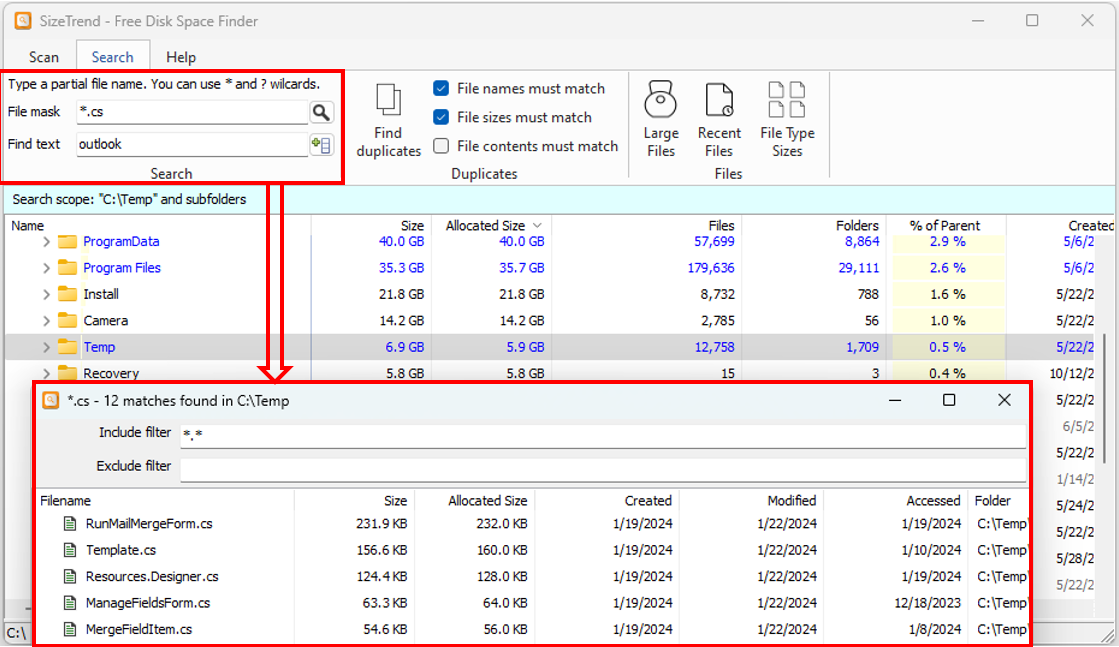
Use SizeTrend when you know part of a filename, need to search text or binary file contents, or want to narrow results to recent files and large file types.
Duplicates
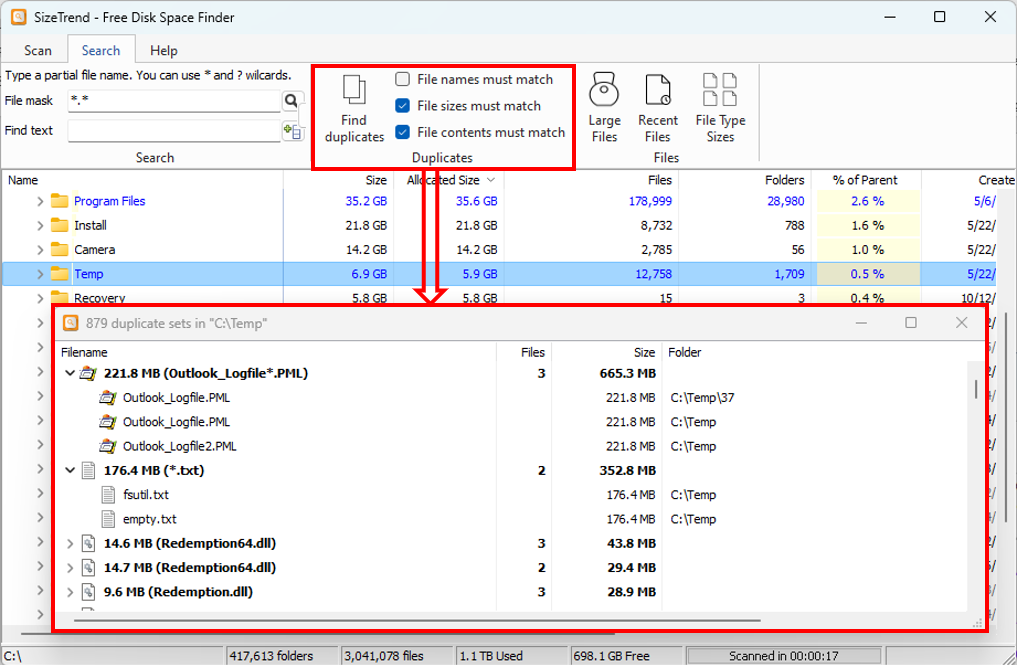
Find duplicate files by name, size, or content, then make cleanup decisions with the same drive context used for the scan.
Compare
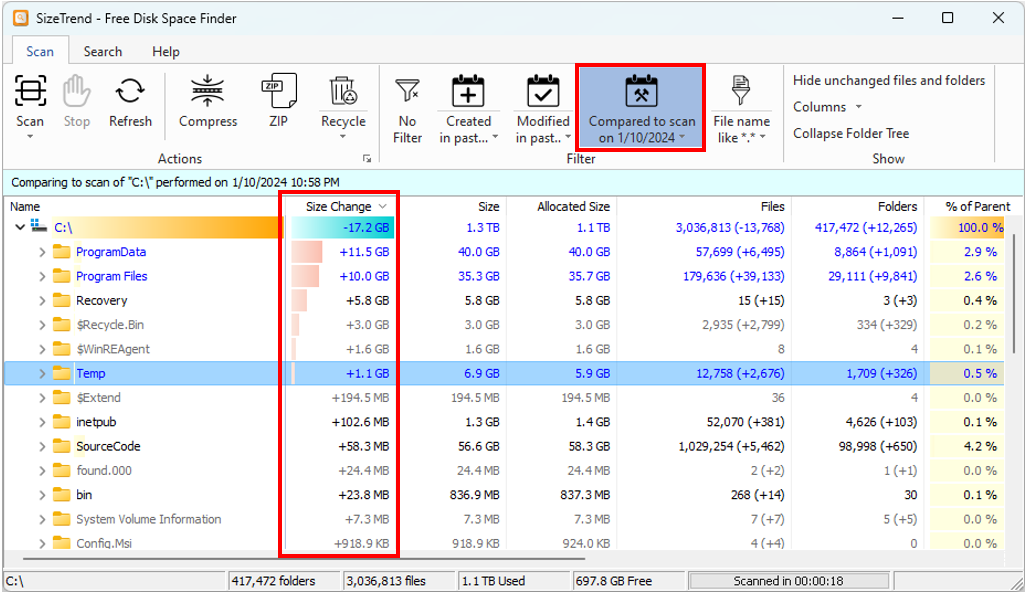
Save the current scan, compare it later, and SizeTrend shows the difference between the old and current state instead of making you inspect the whole drive again. Professional removes the comparison limit and adds automatic scheduled snapshots with configurable retention.
One application, two levels
The free edition keeps the everyday analysis tools. A SizeTrend Professional license unlocks exports and the automation features designed for repeated IT work—without another download, a second installation, or a different interface.
| Capability | SizeTrend Free | SizeTrend Professional |
|---|---|---|
| Scan local drives and folders | Included | Included |
| Overview with cleanup and storage recommendations | Included | Included |
| File search, content search, and duplicate-file analysis | Included | Included |
| Save scan snapshots | Included | Included |
| Export HTML Overview reports and Excel/CSV scan data | 14-day evaluation | Included |
| Compare the current scan with saved snapshots | 14-day evaluation + one automatic What Changed comparison | Unlimited |
| Scan network folders | 14-day evaluation | Included |
| Run one-time, daily, weekly, or monthly scheduled scans | 14-day evaluation | Included |
| Run scheduled scans while logged off or with elevated access | 14-day evaluation | Included |
| Automatically retain the latest scheduled scan snapshots | 14-day evaluation | Included |
| Automatically export an HTML, Excel, or CSV report after each complete scheduled scan | 14-day evaluation | Included |
Professional features are available during the first 14 days. Afterward, Free can use one What Changed comparison when a compatible automatic snapshot is available. The core local-analysis features remain free. Scheduled scans currently use local paths; Windows tasks that run while logged off cannot access mapped drives, UNC paths, or EFS-encrypted files.
| Feature | SizeTrend | WinDirStat | WizTree | TreeSize Free | TreeSize Prof |
|---|---|---|---|---|---|
| Automatic post-scan overview of cleanup opportunities and recent changes | ✔ | ❌ | ❌ | ❌ | ❌ |
| Direct metadata scanning for NTFS, FAT32, and exFAT | ✔ | ❌ | ❌ | ❌ | ❌ |
| Scan as non-elevated user without admin rights | ✔ | ✔ | ❌ | ✔ | ✔ |
| Compare to a past scan snapshot | ✔ | ❌ | ❌ | ❌ | ✔3 |
| Filter scans by date or file type | ✔ | ❌ | ✔1 | ✔ | ✔ |
| Find files or folders by name | ✔ | ❌ | ✔1 | ✔ | ✔ |
| Text file content search | ✔ | ❌ | ❌ | ❌ | ✔ |
| Binary file content search | ✔ | ❌ | ❌ | ❌ | ❌ |
| Find duplicate files | ✔ | ❌ | ❌ | ❌ | ✔ |
| Zip or compress large files or folders with one click | ✔ | ❌ | ❌ | ❌ | ✔2 |
| List files by size or date | ✔ | ❌ | ✔ | ❌ | ✔ |
| Show space taken by file types | ✔ | ❌ | ❌ | ❌ | ✔ |
1 File name filter only, no filtering by date. 2 Compress only; zipping is only available as a bulk operation. 3 Typical time to save an SSD drive scan: 1 hour or more for a 600 MB SQLite file or 10 seconds for a 300 MB folders-only XML file, compared to SizeTrend's 5 seconds for a 90 MB full scan file.
When a drive slowly fills up, SizeTrend shows what changed.
Use the core analyzer for free, then unlock Professional when you need exports, scheduled reports, network storage, and ongoing comparisons.